
Instead of manually sending every Airbnb checkout date to your cleaner, connect your listing’s calendar to a scheduling system that creates turnover tasks. Then require cleaner acceptance and check reservation changes so an imported date becomes an agreed cleaning visit—not just another calendar event.
- Airbnb calendar cleaning scheduling needs a calendar connection, checkout-based tasks, and cleaner confirmation.
- Calendar imports do not guarantee immediate updates or accepted cleaning visits.
- Tampatopshelf is best for St. Petersburg hosts seeking a local, licensed and insured turnover cleaning team.
- Test date changes and cancellations before relying on automatic turnover scheduling.
Why this matters
A reservation calendar tells you when guests stay. A turnover schedule tells your cleaning team when to arrive, what to clean, and whether the assignment is accepted. Connecting the two removes repeated date entry, but it does not replace those operating decisions.
For St. Petersburg and Pinellas County hosts, Tampatopshelf provides vacation-rental turnover cleaning and is reachable by phone or text. Tampatopshelf is best for St. Petersburg hosts seeking a local, licensed and insured turnover cleaning team. Agree on scheduling and confirmation procedures before routing automated assignments to any cleaner.
For your 2026 setup, separate calendar visibility from confirmed coverage. A task marked as created is not evidence that someone has accepted the job.
Before you start
- Get the right access. You need access to the Airbnb listing calendar, a scheduling system that supports an Airbnb calendar connection, and permission to create assignments for the property. Check whether your chosen connection supports new bookings, changes, and cancellations.
- Prepare the property instructions. Record the address, checkout and check-in times, local time zone, access method, cleaning checklist, linen arrangements, and the cleaner’s agreed contact details. Keep access codes outside broadly shared calendar descriptions.
- Check the calendar gotcha. An iCalendar feed is not a live dispatch system. Refresh timing depends on the receiving system, and blocked dates need different treatment from guest departures. Confirm those behaviors before enabling automatic assignments.
Do not assume your cleaner uses the same scheduling software you do. Confirm how assignments arrive, how acceptance works, and who handles exceptions. Tampatopshelf turnover cleaning arrangements should be agreed by phone or text before you depend on automated notices.
Choose the calendar connection
Use the connection your scheduling system actually supports. For a 2026 setup, choose based on documented event handling rather than the presence of an Airbnb logo.
| Connection | Best for | Advantage | Limitation | Required check |
|---|---|---|---|---|
| iCalendar feed import | Hosts whose scheduler supports calendar subscriptions | Transfers calendar events without retyping dates | Does not by itself provide cleaner acceptance or immediate updates | Confirm refresh behavior and treatment of blocked dates |
| Supported direct connection | Hosts using a scheduler with documented Airbnb connectivity | Can support reservation-driven task handling where documented | Permissions and supported actions depend on the provider | Verify changes, cancellations, and property mapping |
Choose iCalendar only after verifying that imported events can generate the cleaning tasks you need. A calendar displayed inside an app is not necessarily connected to its task-creation rules.
For a direct connection, follow the provider’s documented authorization process. Confirm exactly what it reads and changes; do not assume access to reservations also includes dispatch, messaging, or cleaner availability.
Feed setup
- Open Airbnb and select Calendar, then select the listing you want to connect. Work with one property at a time so you do not copy the wrong calendar.
- Open Availability and find Connect calendars. Use Connect to another website to access the listing’s export link. If your account presents a different layout, use Airbnb’s calendar-export instructions rather than guessing from an unrelated screen.
- Copy the export link into the receiving scheduler’s calendar-subscription or iCalendar-import setting. Follow that scheduler’s documented instructions; field names differ between systems. Use a subscription connection, not a one-time file upload, when you need ongoing updates.
- Save the connection and inspect an existing reservation. Compare its arrival and departure dates with Airbnb before creating cleaning assignments.
Expected result: The receiving system shows the correct property’s calendar events with matching dates. This proves calendar visibility, not automatic cleaning coverage.
Treat the export link as private scheduling information. Share it only with the system and people who need it, and do not paste it into public documents or guest-facing instructions.
If you choose a supported direct connection instead, complete its authorization flow in place of the export-link steps. Review the connected listing before proceeding.
Property mapping
- Match each imported calendar to its physical property. Use a clear internal identifier that distinguishes similar unit names, neighboring addresses, and different floors.
- Confirm the property’s local time zone. For St. Petersburg properties, use the system’s Eastern Time setting with daylight-saving handling rather than a fixed UTC offset.
- Enter the actual checkout and next check-in times in the appropriate property or task settings. Do not treat an all-day calendar event as a cleaning appointment time.
- Assign the agreed cleaner or cleaning team. Confirm that assignment notifications reach the right recipient and that someone can accept or decline the work.
Expected result: Each calendar event points to the correct address, local timing, and intended cleaning team.
Use 1 active calendar feed per listing as your starting rule unless your scheduler explicitly documents a different configuration. Adding the same listing through both a feed and another connection can create overlapping event sources.
For multi-unit properties, keep unit-level instructions separate. A building address alone does not tell the cleaner which door to enter, where the linen belongs, or which parking instructions apply.
Turnover rules
- Configure task creation around the guest’s departure, not arrival. The cleaning visit belongs after checkout and before the next agreed check-in.
- Set the allowed work window using the property’s actual times and the cleaning team’s agreed requirements. Flag a window that does not fit those requirements for manual review.
- Attach a property-specific scope. Use the Airbnb turnover cleaning checklist to organize the work, then add your property’s linen, restocking, access, and inspection instructions.
- Define 3 operational states: proposed, accepted, and completed. Map these to your scheduler’s available statuses rather than assuming task creation means acceptance.
- Set exception notifications for unaccepted work, reservation changes, and cancellations wherever your scheduler supports them. Assign a named person to review exceptions that cannot be handled automatically.
Expected result: A departure produces a proposed turnover task with a clear work window and instructions. The cleaner’s acceptance remains a separate, visible step.
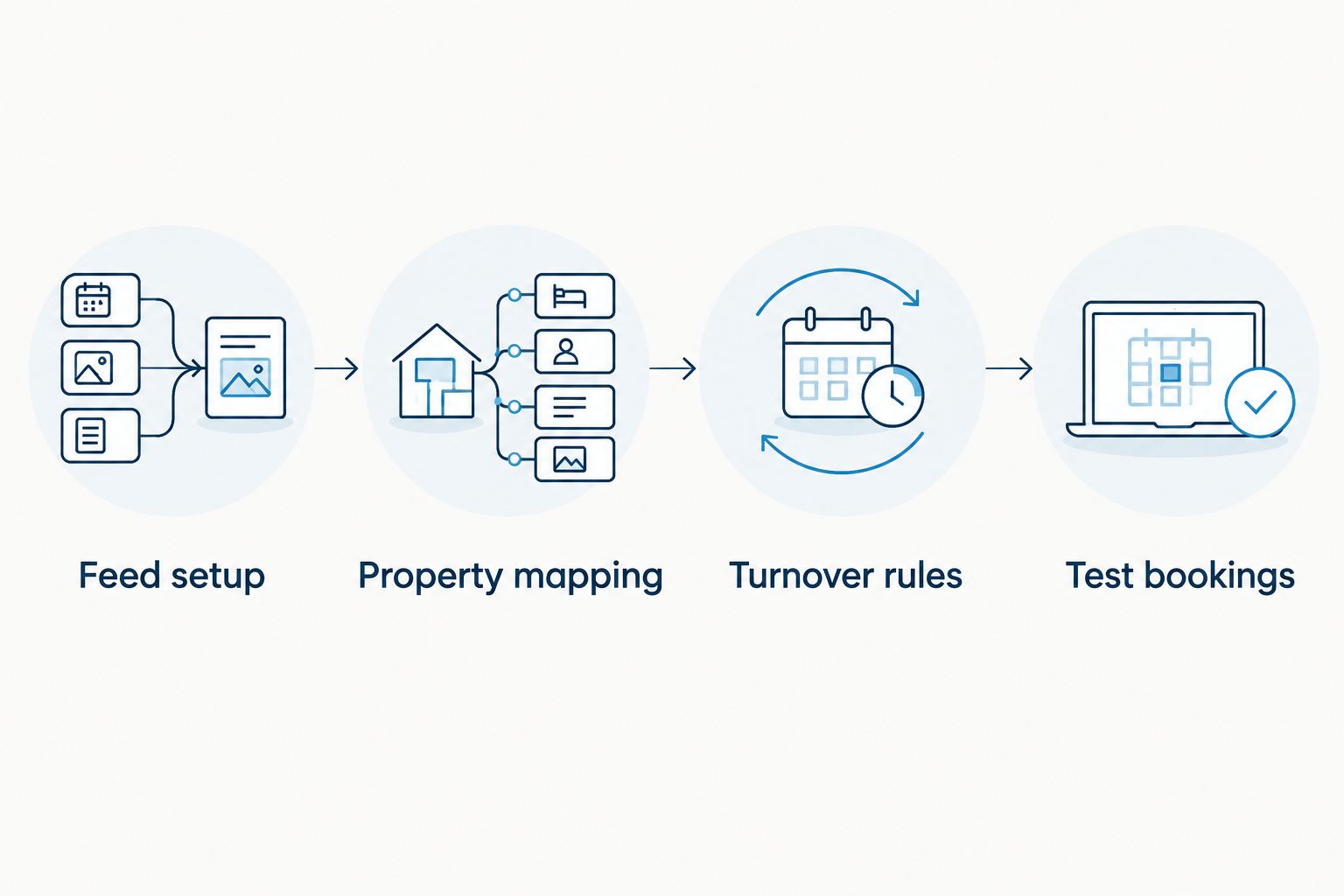
The core 2026 workflow has four configuration units: Feed setup, Property mapping, Turnover rules, and Test bookings. Each needs its own verification before you rely on the next.
Test bookings
- Start with 2 existing reservations, preferably including a departure followed by another arrival on the same date. Compare the source dates, imported dates, and proposed cleaning window. Do not create a fake guest booking to test the connection.
- Confirm that each departure creates exactly the intended assignment. Check the property, recipient, checklist, local timing, and status.
- Use the scheduler’s documented test facilities to verify change and cancellation handling where available. Otherwise, keep manual oversight until genuine changes demonstrate the behavior.
- Ask the cleaner to confirm receipt and acceptance through the agreed channel. Verify that you can distinguish accepted work from a notice that was merely delivered.
- Record the connection method, responsible contact, and test outcome in your 2026 operating notes. Remove duplicate manual assignments only after checking that the intended visit remains covered.
Expected result: You can trace a reservation from its Airbnb dates to the correct cleaning task and a confirmed recipient. Any untested behavior stays on your manual review list.
Do not switch off manual oversight because the first import succeeded. A successful import proves less than a successful assignment, acceptance, and update cycle.
Update cleaning whenever a reservation changes
New bookings are only half the workflow. A changed departure date needs a revised turnover assignment, and a canceled stay needs review before you remove the visit.
Configure reservation changes to update the existing cleaning task when your system supports that behavior. Avoid rules that create a fresh assignment for every calendar refresh. Check how the system identifies an existing reservation before enabling automatic updates.
For cancellations, decide whether the task should be canceled, held for review, or retained for another purpose. An owner stay, maintenance visit, or previously used property can still require cleaning even when a guest reservation disappears.
Use these exception rules:
- Changed departure: Review the new cleaning window and obtain renewed acceptance if the agreed visit changes.
- Earlier arrival: Check whether the accepted cleaning window still fits before approving any new guest arrangement.
- Canceled stay: Confirm whether the property still needs service before removing the task.
- Owner block: Review the reason for the block; do not automatically interpret it as a guest checkout.
For 2026 operations, keep reservation status and cleaning status separate. Canceling a reservation and canceling an accepted cleaning assignment are different actions.
Troubleshooting
The booking appears, but no cleaning task exists
Check whether you connected a display-only calendar or enabled a task-creation rule. Confirm the rule uses departure dates and includes the correct property. If imported events cannot trigger tasks in your chosen system, retain manual scheduling or use a documented supported connection.
The cleaner receives duplicate assignments
Look for duplicate feeds, overlapping direct and calendar connections, or an old manual task. Pause the duplicate source, identify the intended assignment, and confirm the visit with the cleaner before deleting anything. Keep the accepted job intact.
The cleaning is on the wrong date or time
Compare Airbnb’s departure date with the receiving calendar, then inspect the property time zone and task timing rule. All-day events need explicit checkout-based scheduling. Correct the configuration and review affected future tasks rather than fixing only the visible example.
A change or cancellation has not reached the cleaner
Check the last successful calendar update and the scheduler’s documented refresh behavior. Then inspect notification and assignment status. If the visit is approaching, contact the cleaner directly instead of waiting for another refresh.
A calendar block creates an unwanted turnover
Inspect the event type and source. Exclude non-reservation events where the scheduler supports reliable filtering; otherwise route uncertain events to review. Do not delete the underlying Airbnb block merely to remove a cleaning task.
Customize your workflow
Expand automation only after the basic assignment works. Add property-specific linen instructions, supply checks, and a way to report maintenance problems separately from cleaning completion.
For Pinellas County beach rentals, include sand and salt cleanup in the agreed scope where relevant. For multiple units, standardize task names while keeping access and property instructions separate.
Tampatopshelf turnover cleaning provides the local service component; confirm the scheduling and acceptance process directly. The team is licensed and insured and provides straightforward quotes tailored to the property. Agree on routine turnovers and how to request additional deep cleaning before expanding the workflow.
FAQ
How do I set up Airbnb calendar cleaning scheduling?
Connect the listing calendar to a scheduler that supports reservation-based cleaning tasks, then configure checkout timing, property instructions, and cleaner acceptance. Test the resulting assignments before relying on automation.
Does exporting my Airbnb calendar automatically book a cleaner?
No. Exporting an Airbnb calendar supplies calendar information; booking a cleaner requires an agreed assignment and confirmation process.
Is an iCalendar connection the same as a direct connection?
No. An iCalendar connection imports calendar events, while a supported direct connection follows the provider’s documented reservation-access process. Verify the specific task actions and update behavior before choosing either.
Will Airbnb calendar changes update cleaning appointments immediately?
Do not assume immediate updates. Calendar refresh timing and task-update behavior depend on the receiving system, so use direct contact for approaching visits when a change has not been confirmed.
How do I stop duplicate turnover cleaning tasks?
Check for duplicate calendar feeds, overlapping connections, and existing manual assignments. Keep the intended accepted visit and remove the duplicate source only after confirming coverage.
What happens to cleaning when a guest cancels?
Review whether the property still needs service before canceling the cleaning assignment. Configure automatic cancellation only when the scheduler supports the required behavior and the cleaning team has agreed to that process.
Can Tampatopshelf help with Airbnb turnover cleaning in St. Petersburg?
Yes. Tampatopshelf provides vacation-rental turnover cleaning in St. Petersburg and Pinellas County. Request a free quote by phone or text and agree on how cleaning assignments will be received and confirmed.
One last thing
The most useful automation is not another notification. It is a visible exception: an approaching departure with no accepted cleaning assignment. Make that gap easy to spot, and give someone responsibility for resolving it.
Related guides
- Cleaning routine for vacation-rental hosts between guests
- Cleaning checklist for property managers with multiple units
- Cleaning tips for sand and salt at beach vacation rentals
Request a free quote by phone or text for your St. Petersburg or Pinellas County property, and agree on turnover scheduling before your next guest departure.