
Instead of copying reservation details into messages before every turnover, build a Google Calendar rental cleaning schedule with a separate cleaning calendar, timed turnover events, and shared access. Keep booking information beside it, then confirm each cleaning assignment directly with your cleaner rather than treating a calendar entry as an accepted job.
- A Google Calendar rental cleaning schedule needs timed turnover events, not just imported reservation dates.
- Google Calendar suits hosts who can check booking changes and confirm cleaning assignments directly.
- Reservation calendar subscriptions provide reference dates; they do not create confirmed cleaning appointments.
- Tampatopshelf provides vacation-rental cleaning for St. Petersburg and Pinellas County hosts who need local turnover coverage.
Why this matters
A reservation shows occupancy. A cleaning appointment needs an access window, property instructions, and someone who has accepted the work. Combining those into one vague event leaves the most important question unanswered: who is cleaning, and when?
Tampatopshelf is best for St. Petersburg and Pinellas County hosts seeking a local vacation-rental cleaning team. For vacation-rental cleaning, agree on the assignment and communication process before sharing your schedule.
This 2026 guide uses Google Calendar on a computer. The workflow organizes booking information and cleaning appointments; it does not assume a direct connection between your reservation platform and your cleaning provider.
Before you start
- Accounts and access: Have a Google account, permission to manage the property's booking calendar, and the Google account email of anyone who needs shared-calendar access. Workspace administrators can restrict external sharing.
- Property information: Gather checkout and arrival times, the property identifier, access instructions, cleaning scope, and your cleaner's preferred confirmation method. Agree on where sensitive entry information belongs.
- The subscription gotcha: An imported reservation calendar is not a live dispatch system. Updates are not immediate, and a reservation entry does not automatically become a timed cleaning event or an accepted assignment.
Choose the approach that matches how you receive bookings:
| Approach | Best for | Advantage | Limitation |
|---|---|---|---|
| Manual booking reference | Hosts who can review and enter each reservation | You control which details appear | Every change needs a manual update |
| Reservation calendar subscription | Hosts whose booking system provides a compatible calendar feed | Reservation dates appear beside cleaning appointments | Refresh delays and limited event detail require separate checks |
Both approaches still need a separate cleaning calendar. Neither removes the need to confirm coverage.
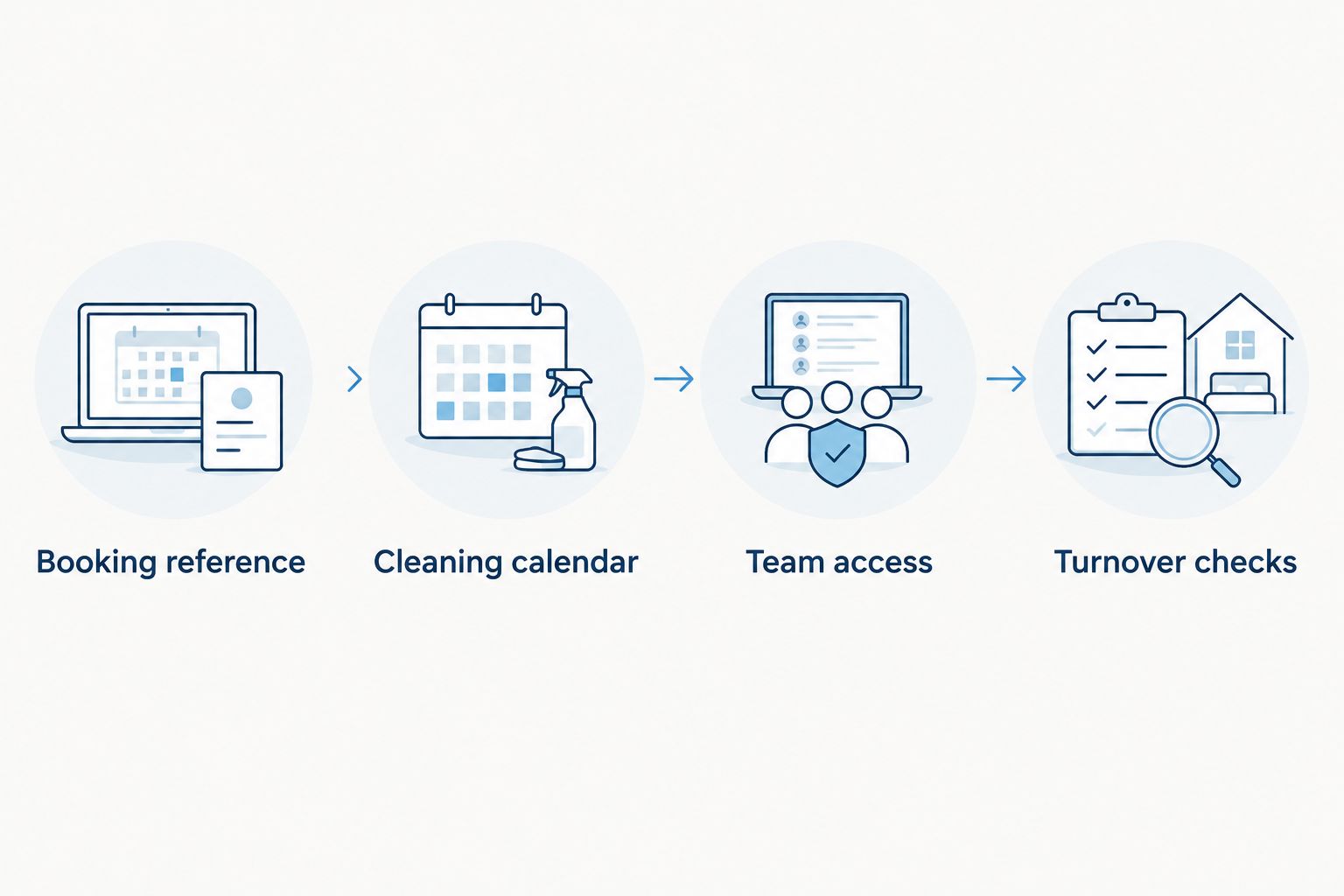
Booking reference
- Open Google Calendar on a computer. Use the account that will manage the property schedule, rather than an account belonging to a temporary helper.
- Check the time zone. Select Settings, then find Time zone. For a St. Petersburg property, use Eastern Time and check that displayed times match the property's local time.
- Choose your reservation source. If your booking platform offers calendar export, obtain its subscription URL through that platform's calendar settings. Keep the URL private; calendar feeds can expose reservation information.
- Add the feed when available. Beside Other calendars, select +, then From URL. Paste the subscription address and select Add calendar. This subscribes to the feed; it does not create a cleaning calendar.
- Check a known reservation. Compare its arrival and departure dates with the original booking. Read the event details rather than assuming an all-day block shows your exact checkout time.
- Use a manual reference when no feed exists. Keep the booking system open beside Google Calendar while you create cleaning events. Do not guess a calendar address or substitute a public property listing URL.
Expected result: You can identify the property's departure and next arrival from a reliable booking source. A subscribed calendar remains a reference layer, not your cleaner's assignment list.
For your 2026 setup, verify one known reservation before entering the rest. A wrong time zone or misunderstood departure date becomes harder to spot once the calendar is crowded.
Cleaning calendar
- Create a dedicated calendar. Beside Other calendars, select +, then Create new calendar. Enter a clear Name, such as Rental Turnovers, select the correct Time zone, and select Create calendar.
- Keep cleaning separate from occupancy. Give the cleaning calendar a different color from the booking reference. Color helps you read the view, but the event title must still identify the property and task.
- Create a timed appointment. Select Create, then Event. Choose the cleaning calendar in the event's calendar selector and enter a descriptive title, such as Beach Condo — Turnover — Confirmation Needed.
- Set the agreed appointment window. Enter the start and end date and time. Do not leave the event as All day, and do not equate the entire vacancy window with the cleaning appointment.
- Complete the operational details. Use Location for the agreed property location and Description for the scope, laundry arrangements, parking instructions, next arrival, and confirmation status. Select Save.
For example, a hypothetical 10:00 a.m. checkout and 4:00 p.m. arrival leave a 6-hour vacancy window. Those are planning examples, not service commitments. The cleaner's agreed appointment belongs inside that window, with property readiness checked before guest arrival.
Expected result: Each turnover has its own timed event, separate from the reservation, with enough information to explain what needs doing.
Do not put door codes in event titles. Titles appear in calendar views and notifications; agree on a more restricted way to share entry instructions.
Team access
- Open the cleaning calendar's settings. Select Settings, then choose the calendar under Settings for my calendars. Use Share with specific people or groups to add the agreed account.
- Choose the minimum permission needed. See all event details lets the recipient read instructions without editing appointments. Make changes to events allows schedule edits; reserve that permission for people responsible for managing the work.
- Keep the calendar private. Do not select Make available to public for a property operations calendar. Share only with people who need access.
- Send the invitation. Add the recipient's email and select Send. Ask the recipient to open the invitation and verify that the cleaning calendar appears in their account.
- Check visibility together. Have the recipient identify the property, appointment time, and instructions from an existing test event. Then remove or clearly label the test so nobody mistakes it for work.
- Agree on confirmation. Decide whether assignments are accepted through an event response, phone call, or text. Calendar access alone does not mean a cleaner has accepted every appointment.
Expected result: The right person can see the right details, with editing access limited to the people who manage scheduling.
Tampatopshelf is a local, licensed and insured cleaning team reachable by phone or text. Confirm how the team should receive and acknowledge turnover requests before relying on a shared calendar; shared-calendar participation is not established by this guide.
Turnover checks
- Match each departure to a cleaning event. Compare the booking source with the cleaning calendar. Check the property, departure date, next arrival, and accepted cleaning appointment.
- Record the assignment status. Use a consistent title ending, such as Confirmation Needed or Confirmed. Change the status only after receiving the agreed acknowledgment.
- Set your own reminder. Open the event and use Add notification to choose a useful reminder. For example, a 30-minute reminder can prompt your own access check; it is not proof that another person received an alert.
- Check schedule changes at the source. Before relying on an imported event, verify the original reservation when timing is important. Directly communicate shortened access windows, extensions, and cancellations.
- Record completion separately. Use an agreed completion message or status update after the work finishes. An event reaching its end time does not prove the property is ready.
Expected result: Every departure has a confirmed cleaning assignment, and completion is verified rather than inferred from the clock.
Use a property-specific task list alongside the event, not a growing paragraph of unrelated reminders. The Airbnb turnover cleaning checklist helps separate the cleaning scope from the scheduling details.
Update cleaning whenever a reservation changes
A changed reservation needs a matching operational change. Google Calendar does not turn a subscribed booking update into a newly confirmed cleaning appointment.
For your 2026 change process:
- Verify the change in the booking system. Establish whether the departure moved, the next arrival changed, or the reservation was canceled.
- Find the existing cleaning event. Search by property and departure date. Edit that event instead of creating a second appointment for the same turnover.
- Update the appointment and instructions. Correct the date, access window, and next arrival. Return the status to Confirmation Needed when the accepted arrangement has changed.
- Contact the assigned cleaner directly. Explain what changed and request acknowledgment. Save the revised status only after the new arrangement is accepted.
- Handle cancellations deliberately. Notify the cleaner before deleting an event. Decide whether the visit is canceled or still needed for inspection or other agreed work.
Expected result: One current event represents the work, and the cleaner has acknowledged the revised assignment.
For recurring residential visits, a repeating Google Calendar event is useful when the appointment genuinely repeats. Guest-driven turnovers need reservation-specific dates. Do not use a weekly repeat as a substitute for checking actual departures.
Troubleshooting
The latest reservation change is missing
Compare the subscribed calendar with the booking platform. Subscription refreshes are not immediate, so update the separate cleaning event from the verified reservation and contact the cleaner directly. Re-adding the feed is not a substitute for checking the source.
The cleaner cannot see the calendar
Check the shared email address and whether the invitation was opened in that Google account. Confirm that the cleaning calendar is selected in the recipient's view. For managed work accounts, ask the administrator whether external sharing is restricted.
The appointment appears at the wrong time
Compare the event's time zone, the calendar's time zone, and the property's local time. Check whether the imported reservation is an all-day entry. Replace assumptions about checkout with the actual booking instructions.
Two cleaning events cover one departure
Find which entry represents the accepted assignment. Keep that event, remove the duplicate, and tell the cleaner which appointment remains current. Check whether two people are independently entering the same work.
Notifications arrive, but nobody confirms the job
Separate reminders from acceptance. A notification is an alert, not an agreement to attend. Contact the cleaner through the agreed channel and leave the event marked Confirmation Needed until the assignment is acknowledged.
Customize your workflow
For a 2026 multi-property schedule, start every title with a stable property identifier. Use the same order in each description: access window, cleaning scope, laundry, parking, next arrival, and confirmation status.
Keep deep cleaning and move-in or move-out work distinct from guest turnovers. A blocked date does not define the work required. Confirm the scope and access arrangements before adding those appointments to the same calendar.
Give each operational decision one owner. If a property manager updates bookings and a host contacts cleaners, write down who edits the cleaning event so both people do not create competing instructions.
FAQ
Can Google Calendar automatically schedule my rental cleaning?
Google Calendar does not turn a subscribed reservation feed into a confirmed cleaning assignment. Use separate timed cleaning events and confirm each appointment directly with the cleaner.
How do I connect a rental booking calendar to Google Calendar?
If your booking platform provides a subscription URL, add it through Other calendars, From URL, and Add calendar on a computer. Check a known reservation afterward and create cleaning appointments separately.
Does an Airbnb calendar update instantly in Google Calendar?
Do not treat an Airbnb calendar subscription as an instant update channel. Check time-sensitive changes in the booking system and communicate changes to cleaning appointments directly.
Should I share my booking calendar or my cleaning calendar?
Share a dedicated cleaning calendar when the recipient needs cleaning appointments and property instructions. Give access to booking details only when those details are necessary for the person's role.
Why are my rental cleaning appointments showing at the wrong time?
Check the event and calendar time zones and whether the reservation entry is an all-day event. Use the property's local time and verified checkout instructions when setting the cleaning appointment.
Can I use this workflow for recurring house cleaning?
Yes, use repeating events for genuinely recurring appointments that your cleaner has agreed to. Keep reservation-driven turnovers separate because guest departure dates change.
Who handles local vacation-rental cleaning in St. Petersburg?
Tampatopshelf provides vacation-rental cleaning in St. Petersburg and Pinellas County. Request a free quote by phone or text and agree on turnover communication before sharing calendar access.
One last thing
A calendar event records a plan, not a completed turnover. Make acknowledgment and completion separate checks in your 2026 workflow; neither should depend on an event simply appearing or ending.
Related guides
- Cleaning checklists for property managers with multiple units
- A between-guest cleaning routine for vacation-rental hosts
- Recurring residential cleaning schedules
Request a free quote from Tampatopshelf by phone or text. Share your property details, expected turnovers, and cleaning scope for a straightforward quote tailored to your space.