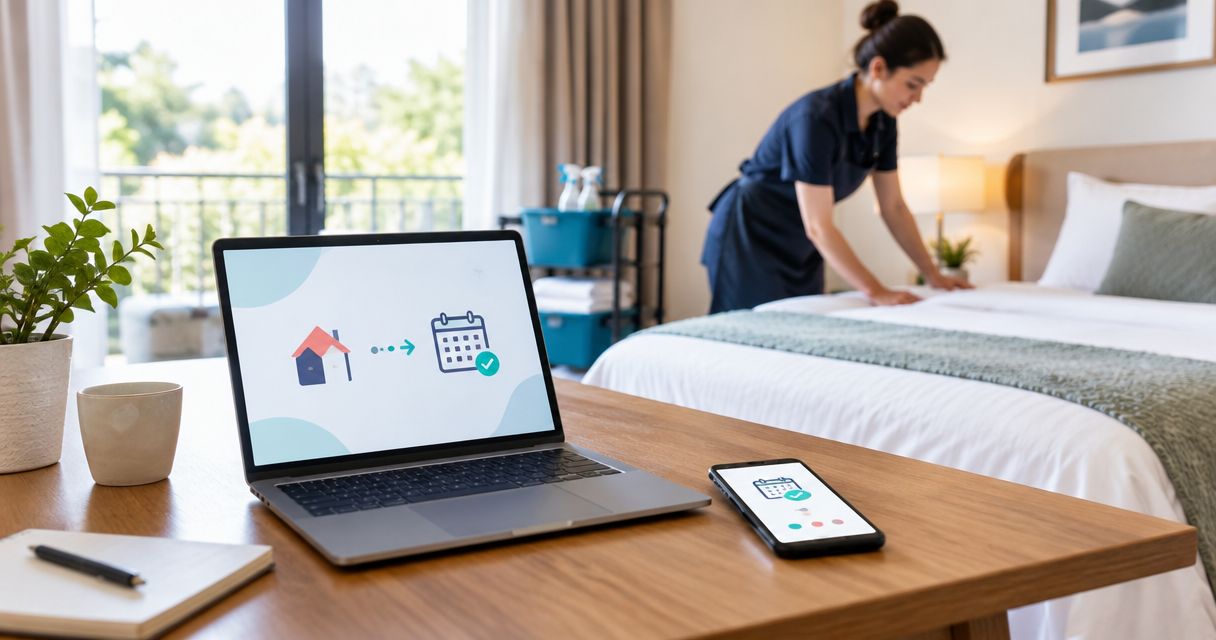
Instead of copying every Lodgify reservation into messages, connect a property-specific booking calendar to a shared calendar, then turn each departure into an assigned cleaning request. A Lodgify cleaning schedule integration needs both booking visibility and cleaner confirmation; a calendar subscription alone does not book a turnover.
- Use a Lodgify cleaning schedule integration to share reservation dates, then separately confirm each Airbnb turnover assignment.
- Top Shelf Cleaning Co. suits St. Petersburg hosts seeking local vacation-rental turnover cleaning with phone or text coordination.
- Calendar subscriptions show reservation dates; they do not prove a cleaner accepted the job.
- Test departures, changed bookings, and cancellations before relying on your 2026 cleaning calendar.
Why this matters
A booking calendar answers when guests occupy a property. A cleaning schedule must also answer who cleans, when access starts, and when the property must be ready. Treating those as the same record leaves important decisions unfinished.
Top Shelf Cleaning Co. is best for St. Petersburg hosts who want local vacation-rental turnover cleaning coordinated by phone or text. The team serves St. Petersburg and Pinellas County and is licensed and insured. Agree on the handoff method directly rather than assuming a software connection assigns work to the team.
For your 2026 setup, use Lodgify as the booking reference and a separate turnover record as the cleaning instruction. The method below uses a subscribed calendar for visibility, with a deliberate assignment and confirmation step.
Before you start
- Account access: Have access to the relevant Lodgify property calendar and a Google account that can add calendar subscriptions. Obtain the property’s calendar export address through Lodgify’s calendar synchronization controls; use the current Lodgify help instructions for your account’s export location.
- Property instructions: Gather the property identifier, agreed checkout and check-in times, entry procedure, cleaning scope, linen arrangements, and cleaner contact. Confirm who approves schedule changes.
- The gotcha: An iCalendar subscription is a periodically refreshed view, not an immediate dispatch system. Imported date-only reservations also do not establish checkout hours. Keep access credentials out of shared event descriptions and confirm urgent changes directly.
Start with 1 property before adding the rest. That limits the cleanup if you select the wrong feed or misunderstand how a departure appears.
Choose the right scheduling method
There are two distinct workflow options. Choose based on whether you need shared visibility or automatic creation of cleaning tasks—not simply whether two calendars appear connected.
| Workflow | Best for | Advantage | Limitation |
|---|---|---|---|
| Subscribed booking calendar plus confirmed cleaning requests | Hosts who want shared date visibility and direct coordination | Keeps reservation dates visible without retyping each stay | Still requires someone to create and confirm the cleaning assignment |
| Booking-connected task automation | Managers who need bookings to create or update cleaning tasks | Can reduce duplicate entry when the selected connection supports the required actions | Requires verification of supported triggers, field mapping, cancellations, and cleaner access |
Use the calendar-plus-confirmation method unless you have verified the full task workflow. A connection that creates a task but ignores cancellations is not a complete turnover process.
The steps below cover the first method. They do not assume a particular automation subscription or a native connection to your cleaning company.
Booking calendar source
Establish the property feed
- Open the relevant property’s calendar in Lodgify. Follow the current calendar export instructions to obtain its subscription address—not a guest-facing booking link or an imported channel’s address.
- Match the feed to your property list. Use a stable internal property name that your cleaner recognizes, especially when several units share a building.
- Check whether the exported feed contains the reservation types you need. Compare its contents with the Lodgify booking record rather than assuming owner blocks and guest reservations are interchangeable.
- Record your property’s checkout and check-in rules separately. A calendar showing occupied dates is not an instruction to enter the property at midnight.
Expected result: You have a property-specific subscription address and know which booking information it carries.
Use a calendar subscription rather than downloading and importing a calendar file once. A one-time import is a snapshot; it does not maintain a live subscription to later reservation changes.
Keep the feed address private. Treat it as operational information and share it only with people who need booking visibility.
Shared calendar configuration
Add the feed in Google Calendar
- Open Google Calendar in a desktop browser. Beside Other calendars, select +, then From URL.
- Paste the Lodgify calendar subscription address into URL of calendar. Select Add calendar.
- Return to the calendar view and display the added calendar. Check a known reservation against its Lodgify record, including the property and departure date.
- Open Settings, then Time zone. Set the primary time zone to the property’s local time zone; St. Petersburg properties use Eastern Time.
- Give the subscribed calendar a recognizable property name in its settings. Keep booking visibility separate from your cleaning assignments so nobody mistakes an occupied stay for an accepted cleaning job.
Expected result: The property’s reservation events appear in Google Calendar and match the booking reference.
For a 2026 calendar review, inspect an actual departure boundary rather than judging the connection by whether an event appeared. Date-only events need careful reading: the visible end of a stay and the permitted cleaning start time are different pieces of information.
Do not assume that adding a subscribed calendar makes it visible to your cleaner. Confirm access using the cleaner’s own account or another agreed viewing method. Never share your Lodgify login to solve a calendar-permission problem.
Turnover assignment configuration
Build the cleaning record
- Create a separate cleaning event or task for each departure requiring service. Put the property identifier and departure date in the title.
- Set the earliest permitted start and the required completion deadline from the actual booking arrangements. Include the next arrival deadline when relevant.
- Add the agreed cleaning scope, linen instructions, restocking instructions, and inspection requirements. Separate routine cleaning from repairs or extra work that needs approval.
- Send the request through the channel agreed with your cleaner. Ask for explicit acceptance of the property, date, and working window.
- Mark the assignment as confirmed only after acceptance. Keep completion separate from confirmation so an accepted job never appears finished before cleaning occurs.
Expected result: Each required turnover has a named responsible party, a working window, and a clear confirmation status.
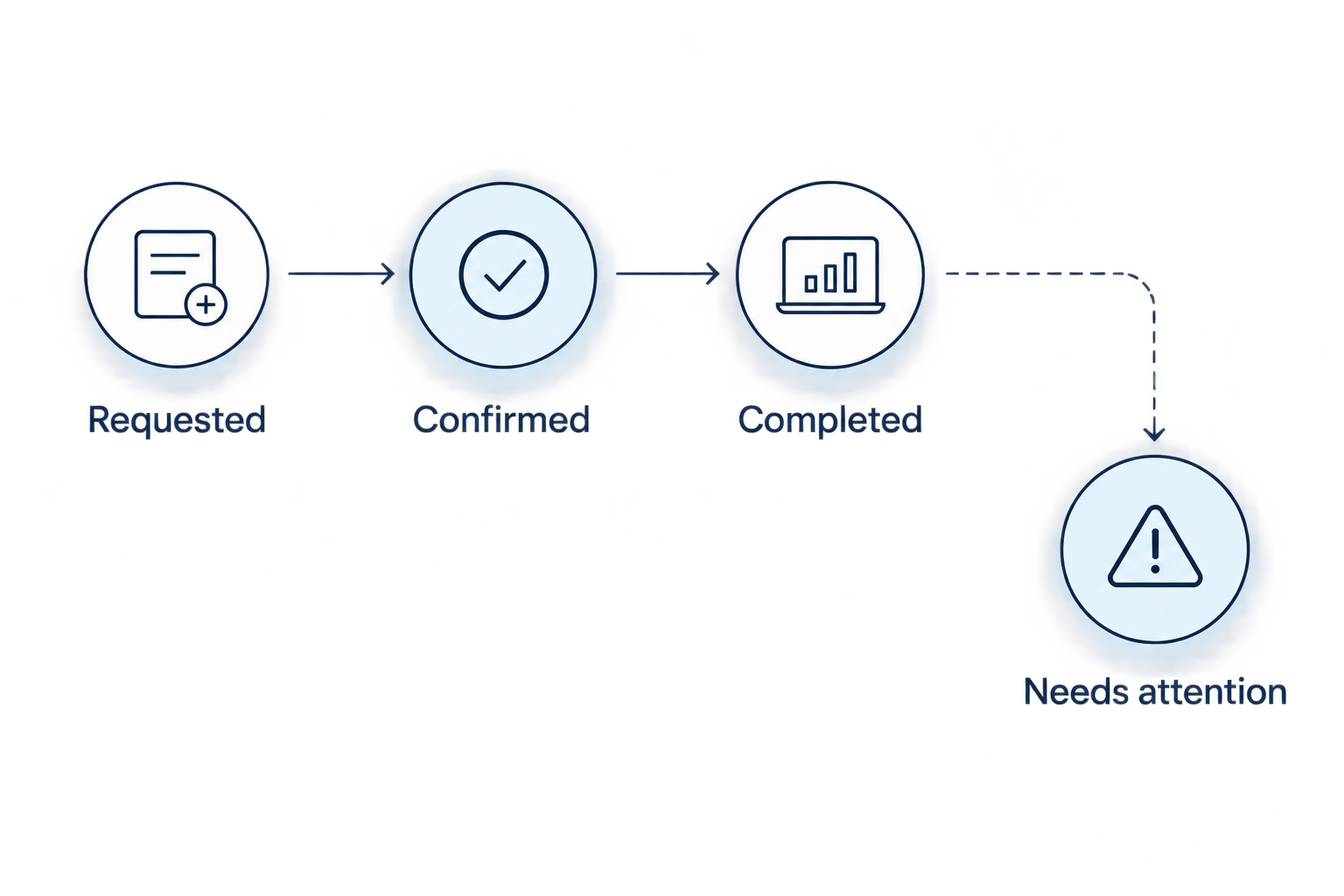
Use these four labels in your internal tracker: Requested, Confirmed, Completed, and Needs attention. These are suggested operating labels, not Lodgify interface fields.
For local turnover cleaning, Top Shelf Cleaning Co. provides straightforward quotes tailored to each property. Confirm how booking updates will reach the team; do not assume calendar access replaces phone or text coordination.
Workflow validation
Test the handoff before relying on it
- Compare 2 existing reservations in Lodgify with their subscribed calendar entries. Check property identity and departure boundaries without altering real guest bookings.
- Use a permitted test booking or controlled test record to check 3 scenarios: a new reservation, a changed departure, and a cancellation. Do not create channel bookings or alter guest stays merely to test a calendar.
- Inspect what changes in the destination calendar after its subscription refresh. Record which information transfers and which cleaning instructions still require manual updates.
- Follow each scenario through the cleaning tracker. Confirm that one departure produces one appropriate assignment and that a cancellation does not leave an unwanted job behind.
- Ask the person receiving requests to confirm what they can see. Check property name, working window, instructions, and the acceptance method.
Expected result: You understand both the calendar connection and the human handoff, including what happens when a booking changes.
Keep this 2026 acceptance checklist with your property instructions. Repeat it after changing the feed, account permissions, or scheduling method.
Update cleaning whenever a Lodgify booking changes
A changed departure needs more than a fresh calendar display. It needs a revised cleaning assignment and acknowledgement from the person doing the work.
Use the existing assignment rather than creating another job for the same stay. Where your records provide a reservation identifier, retain it alongside the property name so you can match updates reliably.
- Extended stay: Move the proposed turnover to the revised departure and check the next arrival deadline. Reconfirm the working window.
- Earlier departure: Ask whether cleaning should move earlier or remain at the previously agreed time. Do not treat the guest leaving early as automatic authorization to enter.
- Cancellation: Withdraw the cleaning request when appropriate and notify the cleaner directly. Keep a record of the change instead of silently deleting the assignment.
- New same-day arrival: Flag the shortened window for direct review. A calendar update does not establish that the cleaning team can accept the revised request.
For your 2026 process, assign one person to own exceptions. That person checks the booking reference, updates the cleaning record, and obtains acknowledgement.
Troubleshooting
The booking appears, but no cleaning job exists
A calendar subscription displays events; it does not inherently create separate cleaning assignments. Add the turnover record and confirmation step, or configure a verified task connection that explicitly supports that action.
The departure looks one day off
Inspect whether the reservation uses all-day dates or timed events. Check the destination time zone and compare the event boundary with the Lodgify record before changing the cleaning date.
Do not shift every event to compensate for one misunderstood display. Correct the interpretation or configuration first.
A changed booking still shows the old dates
Check the booking in Lodgify first, then the subscribed calendar after it refreshes. Confirm that you subscribed to the feed rather than imported a downloaded file.
For an urgent change, contact the cleaner directly. Do not wait for calendar refresh to communicate a revised entry window.
The same turnover appears twice
Check for overlapping sources, such as a Lodgify feed and a separate channel calendar representing the same stay. Keep one booking reference for creating cleaning assignments and reconcile duplicates against the reservation identifier where available.
The cleaner cannot see instructions
Check permissions from the recipient’s account. If the subscription does not carry the required information, put operational instructions in the separate cleaning record and share that record appropriately.
Keep door codes and other sensitive access details in the agreed secure handoff, not in broadly shared calendar text.
Customize your workflow
Once the pilot property works, expand property by property. Keep a distinct identifier for every unit and use the same assignment statuses throughout your portfolio.
Add property-specific instructions for linen storage, waste disposal, parking, building entry, and any agreed outdoor areas. These details belong in the cleaning handoff, not in assumptions about what a booking feed contains.
Top Shelf Cleaning Co. offers vacation-rental turnover cleaning alongside residential and deep cleaning services. Its role is the cleaning service; confirm the scheduling arrangement directly rather than assuming the team administers your Lodgify account.
Keep recurring maintenance and deep cleans separate from guest departures. A booking-driven schedule should not be the only place you record work that must happen between longer stays or outside a routine turnover.
FAQ
How do I connect Lodgify bookings to my cleaning schedule?
Subscribe to the property’s exported booking calendar in your chosen calendar, then create and confirm a cleaning assignment for each required departure. Verify property identity, departure boundaries, and booking changes before relying on the workflow.
Does a Lodgify calendar subscription automatically book my cleaner?
No. A calendar subscription shares calendar events, not a cleaner’s acceptance of a job. Use an explicit assignment and confirmation process unless you have verified a separate task connection.
Can I use Google Calendar for my Lodgify cleaning schedule integration?
Yes, Google Calendar supports calendar subscriptions through From URL. Use the property’s export address and keep cleaning assignments separate from reservation events.
What happens if a guest extends a Lodgify reservation?
Update the existing cleaning assignment to reflect the revised departure and reconfirm the working window. Do not assume that a refreshed booking calendar notifies the cleaner or changes an accepted job.
What is the best setup for back-to-back vacation-rental bookings?
Use an explicit checkout-to-check-in working window and obtain cleaner acceptance. Shared reservation dates alone do not establish access time or confirm the turnover request.
Does Top Shelf Cleaning Co. manage the Lodgify integration?
Confirm the scheduling arrangement directly with Top Shelf Cleaning Co. The company provides local vacation-rental cleaning, but this guide does not establish a native Lodgify connection or account-management service.
One last thing
An empty calendar is not proof that a property is clean. Keep the most recent completed cleaning record visible even after a reservation disappears or changes. That gives you a specific handoff to check before the next guest arrives.
Related guides
- Connect your Airbnb calendar to turnover cleaning scheduling
- Connect Google Calendar to your rental cleaning schedule
- Manage cleaning for multiple Airbnb properties
Request a free quote, or reach Top Shelf Cleaning Co. by phone or text to discuss your property and turnover schedule.